VS Code Port Forwarding
Set Up Port Forwarding
-
Open the terminal: In VS Code, press
Ctrl+`(Cmd+`on Mac) to open the terminal. -
Run your service: Start the service you want to access in the terminal, for example, a web service running on
localhost:3000. -
Configure port forwarding:
Method 1:
Add port forwarding directly in the ports section next to the terminal. Enter the remote service port, and it will be forwarded to the same port on localhost.
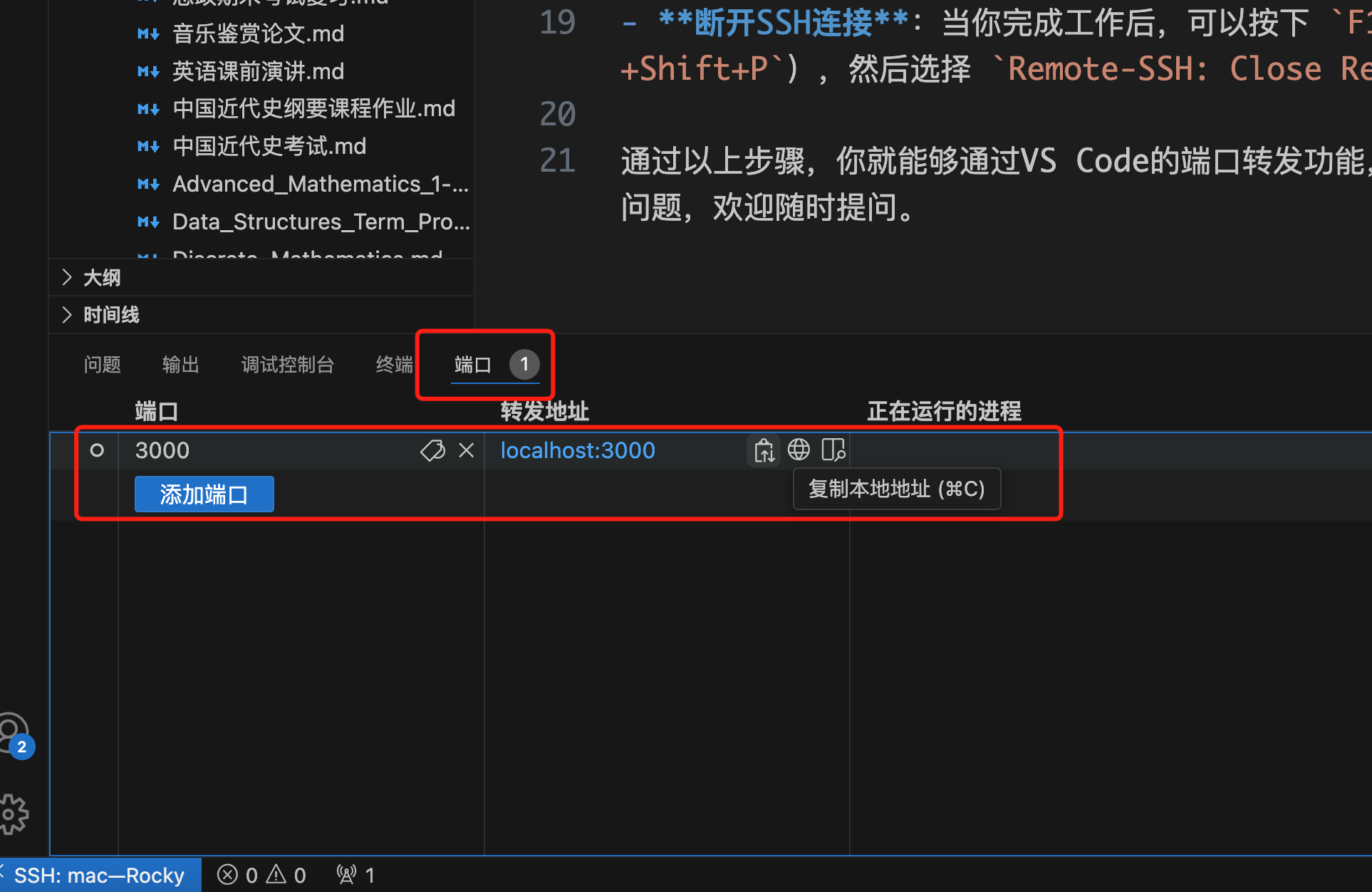
Method 2:
- Press
F1orCtrl+Shift+P(Cmd+Shift+Pon Mac), type and selectRemote-SSH: Forward Port.... - Enter the local port number (e.g.,
3000) and press Enter. - Enter the remote port number (e.g.,
3000) and press Enter.
Access the Service
After completing the steps above, you can access the service on the remote machine through http://localhost:3000 in your local browser. VS Code automatically handles port forwarding, allowing you to access remote services as if they were local.
Disconnect
- Disconnect SSH: When you are done, press
F1orCtrl+Shift+P(Cmd+Shift+Pon Mac), then selectRemote-SSH: Close Remote Connectionto disconnect from the remote machine.
By following these steps, you can use VS Code's port forwarding feature to conveniently access and debug services on remote machines. If you have any questions, feel free to ask.